How to Stop Pop-Up Ads on Android (2026): 7 Practical Fixes

Pop-up ads on Android don’t all come from the same place. Some appear inside Chrome while you’re browsing. Others show up as notification alerts from a website you visited once. Some take over your entire screen when you open an app — even when Chrome is completely closed.
The fix depends on where the ads are appearing. Start by identifying your situation in the table below, then go directly to the right solution.
Where Are the Ads Appearing? Start Here.
| What you’re experiencing | Most likely cause | Go to |
|---|---|---|
| Pop-ups appear only while browsing in Chrome | Website pop-ups or redirects | Fix 1 |
| Ads appear as notification alerts from a website | Website notification permission | Fix 2 |
| Full-screen ads appear when opening or using apps — Chrome is closed | A third-party app may be involved | Fix 3 |
| Ads appear on your Home screen or over other apps | A third-party app may be involved | Fix 3, then Fix 5 |
| Ads continue after checking Chrome and removing apps | Another problematic app may still be present | Fix 4, then Fix 5 |
| You have a Samsung Galaxy phone and ads appear while browsing | Browser pop-ups in Samsung Internet or Chrome | Fix 6 |
| Nothing above has worked | Source not yet identified | Fix 7 |
Quick Answer
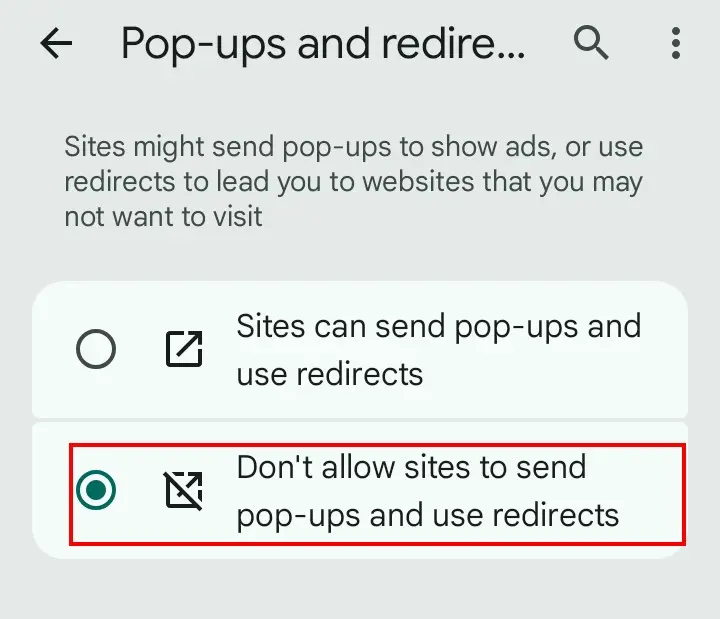
Open Chrome and go to Settings → Site settings → Pop-ups and redirects, then turn off Pop-ups and redirects. If ads continue, check website notifications, recently installed apps, and run a Google Play Protect scan.
If ads appear only in Chrome, Fix 1 is your starting point. If they appear on your Home screen or over other apps when Chrome is closed, go directly to Fix 3.
Fix 1: Turn Off Pop-Ups and Redirects in Chrome
Chrome blocks pop-ups by default, according to Google’s official documentation. If unwanted pop-ups still appear, the source may be website notifications or unwanted software rather than standard Chrome pop-ups.
Fix 2: Stop Spam Website Notifications in Chrome
Some websites ask for permission to send notifications. If you tapped “Allow” at any point — even accidentally — that website can send alerts that look like pop-up ads to your Android notifications.
Google’s Chrome documentation confirms that website notifications are a separate cause from browser pop-ups and require a different fix.
Method A — If you don’t know which website is sending the notifications:
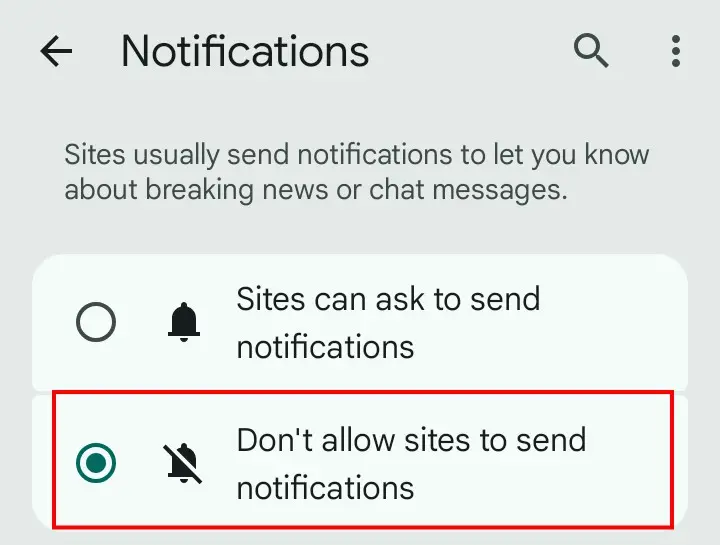
Method B — If you’re currently on the website sending the notifications:
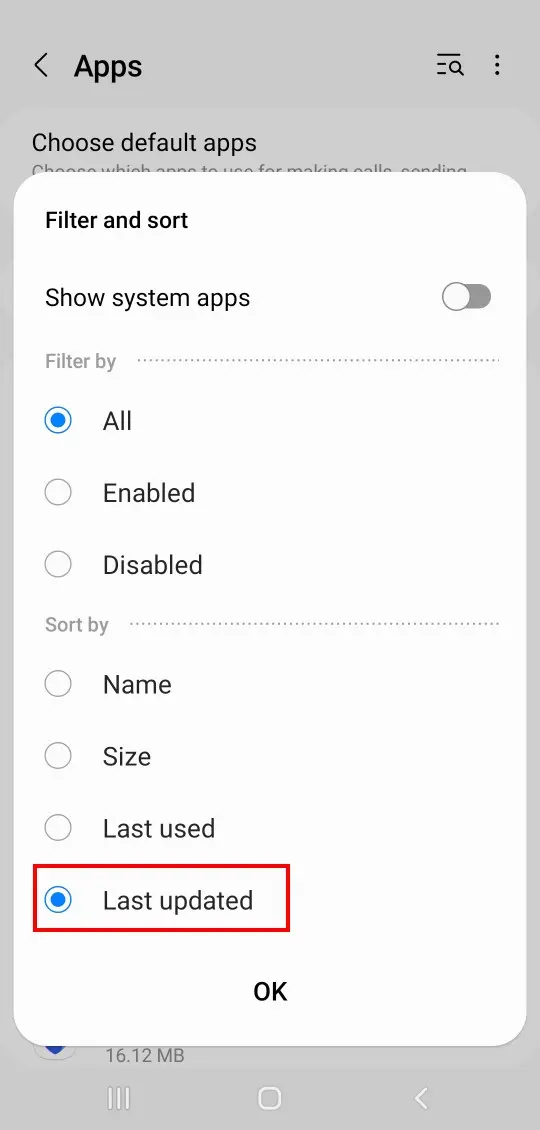
Fix 3: Find and Remove a Problematic App
If ads are appearing as full-screen overlays when you open apps, or on your Home screen without Chrome being open, a recently installed or updated third-party app can be responsible, especially when the ads appear outside the browser.
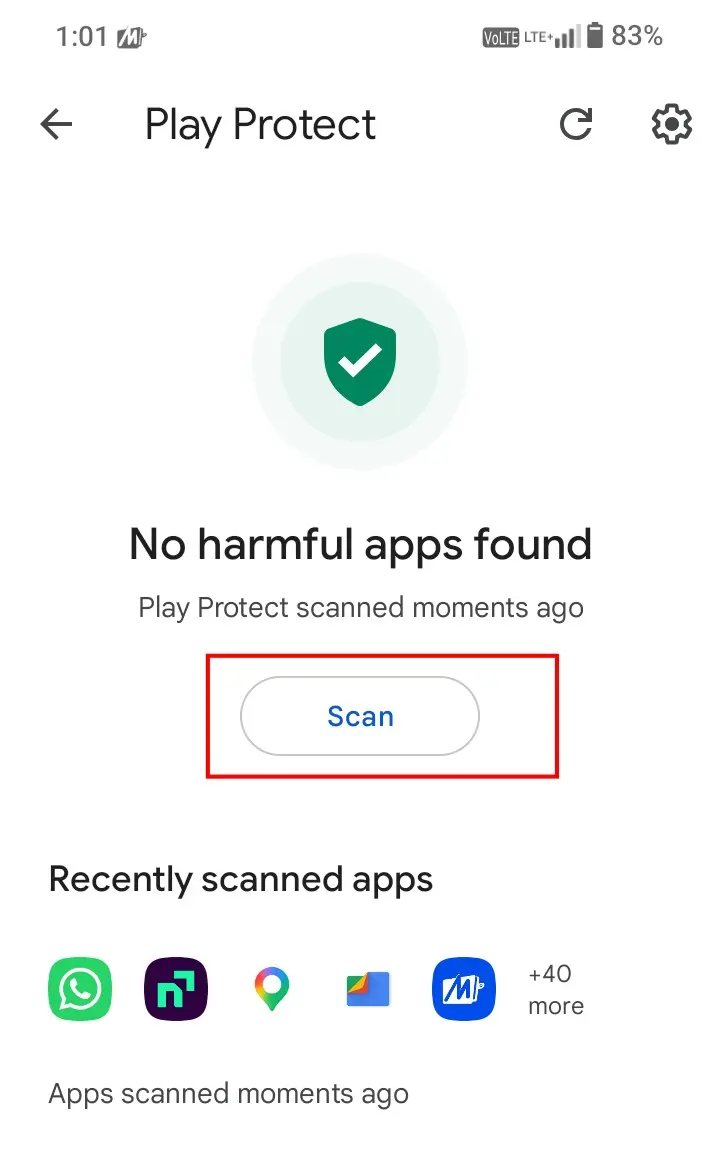
Fix 4: Run a Google Play Protect Scan
Google Play Protect is Android’s built-in app security service. It checks apps for potentially harmful behavior and can warn you or recommend action when it detects a problem. Google’s official documentation recommends keeping app scanning enabled.
Fix 5: Use Safe Mode to Identify the Problematic App
In Safe Mode, downloaded third-party apps are temporarily disabled, allowing you to check whether the problem continues without those apps running. This makes Safe Mode a useful diagnostic environment — not a fix in itself.
What Safe Mode tells you:
- Ads disappear in Safe Mode → A third-party app is likely involved. Safe Mode doesn’t identify the exact app automatically — you still need to find and remove it.
- Ads continue in Safe Mode → The cause may not be a third-party app. Recheck Fixes 1 and 2, or contact your device manufacturer’s support.
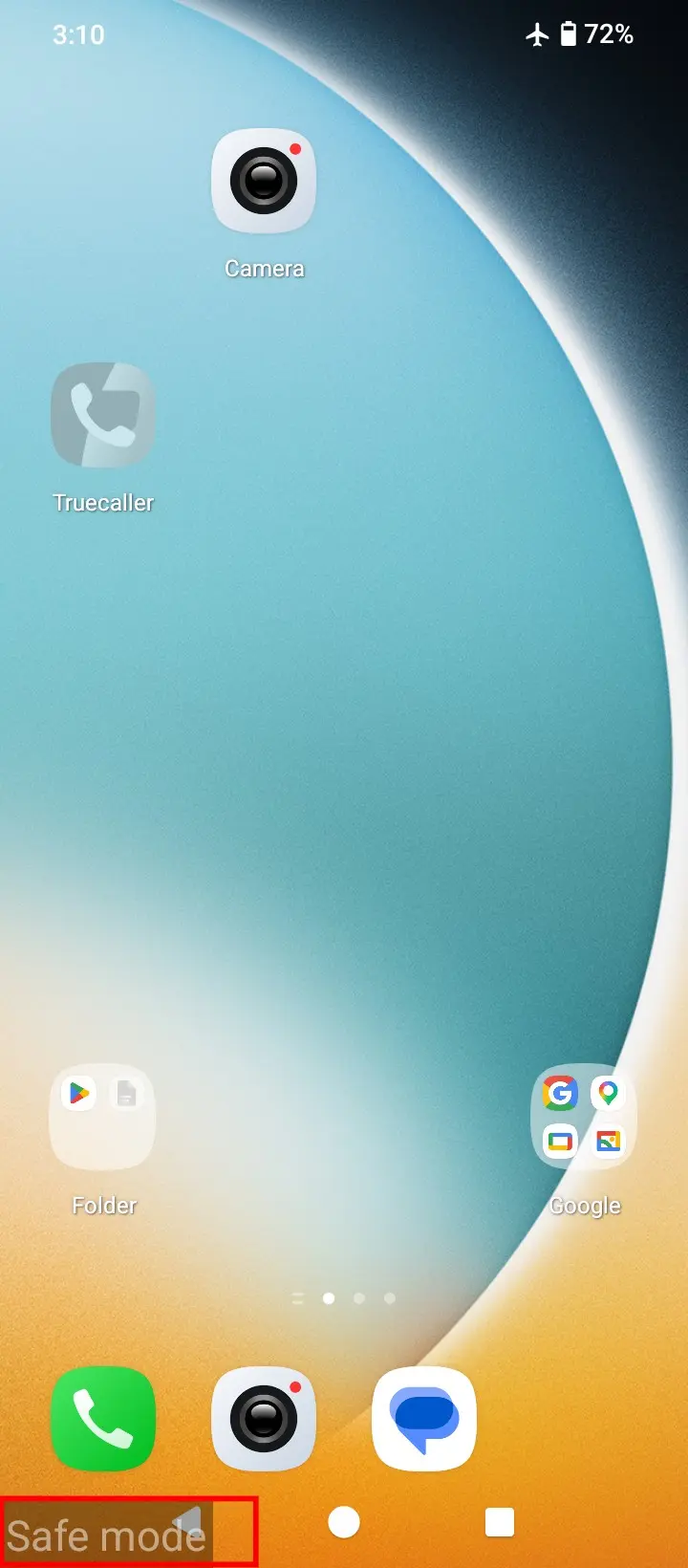
Steps once you’re in Safe Mode:
Fix 6: Stop Pop-Up Ads on Samsung Galaxy Phones
If you use Samsung Internet or Chrome on a Galaxy phone, each browser has its own pop-up settings. If you use Samsung Internet as your default browser, adjusting the Chrome setting alone won’t be enough.
For Samsung Internet:
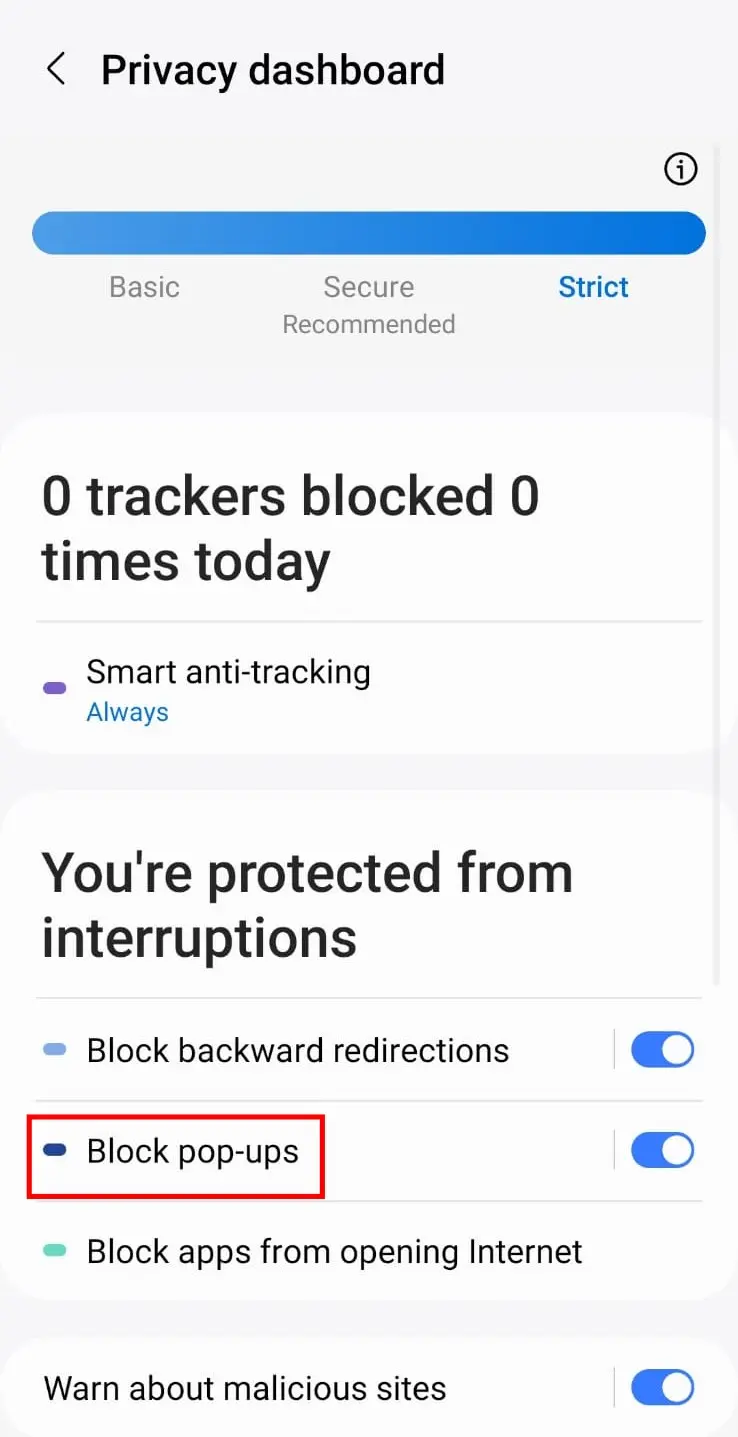
Samsung Internet also has an optional Ad blockers section in settings if you want to explore additional blocking options.
For Chrome on Samsung Galaxy:
Follow the same steps as Fix 1 — Chrome → Settings → Site settings → Pop-ups and redirects → turn it off
Fix 7: Factory Reset — Only as a Last Resort
⚠️ WARNING: A factory reset erases the device’s user data, installed apps, and settings and returns the software to its factory-default setup. A factory reset cannot be undone once the device data has been erased. Back up all important data before proceeding. You may need the Google account credentials previously associated with the device during setup after a reset. On supported Galaxy devices, Samsung account credentials may also be required.
A factory reset should not be an early step. Try every fix above before considering this option.
Before you reset:
How to Prevent Pop-Up Ads in the Future
- Prefer apps from the Google Play Store. If you install an app from outside a trusted app store, make sure you trust the source and understand what you’re installing.
- Check app reviews and permissions before installing. If a simple utility requests unusual permissions — such as the ability to appear over other apps — that’s worth investigating before you tap Install.
- Keep Play Protect enabled. It scans apps automatically in the background.
- Be careful when tapping “Allow” on website notification prompts. Only allow notifications from websites you genuinely want to hear from.
- Be cautious of pop-ups asking you to install an update or security app. Don’t install software or updates from unexpected browser pop-ups. Use the app’s official update mechanism, the Google Play Store, or your phone’s Settings instead.
Frequently Asked Questions
How do I stop pop-up ads on Android?
Start by turning off Chrome pop-ups and redirects in Site settings. If ads continue, check website notifications and recently installed or updated apps. For full-screen ads appearing outside Chrome, use Safe Mode to help identify a problematic third-party app.
Why are pop-up ads suddenly appearing on my Android phone?
The source can vary. It may be a website notification you accidentally allowed, a browser pop-up, or a recently installed third-party app. Where the ads appear — inside Chrome, in your notifications, on the Home screen, or over other apps — is the most useful clue for identifying the cause.
How do I stop ads on my Android Home screen?
If ads appear on the Home screen or over other apps, investigate recently installed or updated third-party apps. Uninstall a suspicious app, restart your phone, and check whether the ads have stopped. If you can’t identify the source, use Safe Mode as a diagnostic step.
Will Chrome’s pop-up blocker stop all ads on Android?
No. Chrome’s pop-ups and redirects setting addresses browser pop-ups only. Ads delivered through website notifications, or caused by a third-party app, require separate troubleshooting steps.
How do I find which app is causing pop-up ads?
Check apps installed or updated around the time the ads started. If the source isn’t obvious, enter Safe Mode — if the ads disappear, a third-party app is likely involved. Remove suspicious apps one at a time, restarting after each removal to test.
How do I use Safe Mode to stop pop-up ads?
Enter Safe Mode using your phone manufacturer’s method and observe whether the ads stop. If they do, a downloaded third-party app is likely the cause. Restart normally, then remove recently installed apps one at a time, restarting after each to test. Safe Mode is a diagnostic tool — it does not remove the problem by itself.
Can pop-up ads on Android be caused by a virus or malware?
They can be associated with unwanted software, but a pop-up does not automatically mean your phone has a virus. Check browser notifications, recently installed apps, and Google Play Protect before drawing that conclusion.
How do I check my Android phone for harmful apps?
Open Google Play Store, tap your profile picture or initial, tap Play Protect, go to settings, and confirm that “Scan apps with Play Protect” is enabled. If your device shows a Scan option, tap it and follow any recommendations that appear.
How do I stop pop-up ads on a Samsung Galaxy phone?
For Samsung Internet, go to Settings → Privacy dashboard and turn on Block pop-ups. For Chrome, use Chrome → Settings → Site settings → Pop-ups and redirects. If ads appear outside the browser, investigate recently installed or updated third-party apps.
Do I need to factory reset my phone to stop pop-up ads?
In most cases, no. Work through browser settings, website notifications, suspicious apps, Safe Mode, and Play Protect first. A factory reset should only be considered when all other options have been exhausted, and only after backing up your data.
How do I permanently block all ads on Android?
There is no single setting that universally blocks every type of advertisement across Android. The right fix depends on where the ads originate — Chrome, website notifications, and third-party apps each require a different approach.
Will turning off Ad Privacy settings stop pop-up ads?
No. Android’s Ad Privacy controls affect how ads are personalized — they manage ad targeting preferences, not pop-up blocking. Adjusting these settings will not stop unwanted pop-up ads.
How We Tested
Key troubleshooting settings and diagnostic procedures were tested on two devices on September 18, 2026:
- POCO C71 — Android 15: Chrome pop-ups and redirects setting, Chrome website notification controls, Google Play Protect scan, and Safe Mode entry
- Samsung Galaxy M21 (SM-M215F/DS) — Android 12 / One UI Core 4.1: Reviewing recently updated apps in Settings, and Samsung Internet pop-up blocking via Privacy dashboard
Some procedures were verified as diagnostic steps rather than complete troubleshooting outcomes. No specific app was personally confirmed as the cause of pop-up ads during testing. The factory reset procedure was not personally tested because it is a destructive last-resort action.
Menu names, navigation paths, and available options can vary between Android versions, manufacturer interfaces, browser versions, and device models. The paths described in this article reflect what was observed during testing on the devices listed above.
The Bottom Line
Common Android pop-up ad problems can come from a Chrome setting, a website notification, or a third-party app. Start with Fix 1 if ads appear only in Chrome. Go directly to Fix 3 if they appear on your Home screen or over other apps when Chrome is closed. Run a Play Protect scan and use Safe Mode if the source isn’t obvious. A factory reset is rarely necessary — and should always be the last option, never the first.
Sources: Google Chrome Help — Block or allow pop-ups in Chrome | Google Chrome Help — Remove unwanted ads, pop-ups & malware | Samsung Support — Manage pop-up ads on your Galaxy phone | Google Android Help — Manage your ad privacy settings on Android